Argo CD
Created by: Ahilan A
Posted Date: 20/7/2024
Share
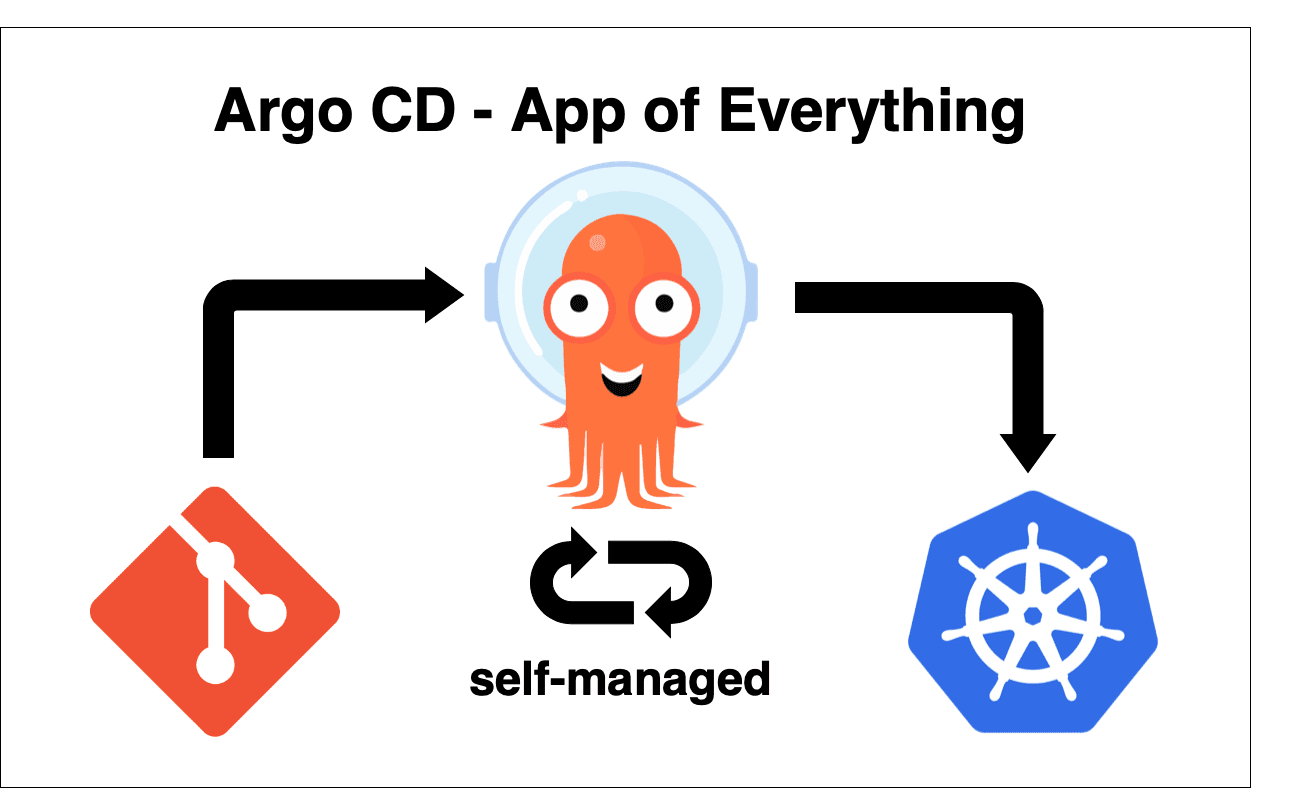
1. Description of the Application:
ArgoCD is the process of deploying and managing applications on Kubernetes clusters by providing automation, version control, and a user-friendly interface for GitOps workflows.
2. Install kubernetes:
· To update the packages
sudo apt-get update
· Install curl using command
sudo apt-get install curl
· Go to kubernetes official website
Link: https://kubernetes.io/docs/tasks/tools/install-kubectl-linux/#install-kubectl- binary-with-curl-on-linux
Download kubectl binary using below command
curl -LO "https://dl.k8s.io/release/$(curl -L -s https://dl.k8s.io/release/stable.txt)/bin/linux/amd64/kubectl"
· install kubectl binary using below command,
sudo install -o root -g root -m 0755 kubectl /usr/local/bin/kubectl
· check version using below command,
kubectl version --client
· detailed version using below command,
kubectl version --client --output=yaml
3. Install Minikube
Purpose: Minikube allows you to run a local Kubernetes cluster on your development machine.
· Download minikube binary
curl -LO https://storage.googleapis.com/minikube/releases/latest/minikube-linux- amd64
· Install minikube binary
sudo install minikube-linux-amd64 /usr/local/bin/minikube && rm minikube-linux- amd64
· Check version
minikube version
Before start the minikube,install docker…go to official website Link: https://docs.docker.com/engine/install/ubuntu/
· Using below commend forAdding Docker's official GPG key:
· sudo apt-get update · sudo apt-get install ca-certificates curl · sudo install -m 0755 -d /etc/apt/keyrings · sudo curl -fsSL https://download.docker.com/linux/ubuntu/gpg -o /etc/apt/keyrings/docker.asc · sudo chmod a+r /etc/apt/keyrings/docker.asc
· Add the repository to Apt sources:
· echo \ "deb [arch=$(dpkg --print-architecture) signed-by=/etc/apt/keyrings/docker.asc] https://download.docker.com/linux/ubuntu \ $(. /etc/os-release && echo "$VERSION_CODENAME") stable" | \ · sudo tee /etc/apt/sources.list.d/docker.list > /dev/null
· Install latest packages
sudo apt-get install docker-ce docker-ce-cli containerd.io docker-buildx-plugin docker-compose-plugin
· Install latest packages
sudo docker version
4. Install ArgoCD on Minikube:
1. So Start minikube with docker as driver,run
minikube start --driver=docker
During run,any permission denied issue come ,

For Add your user to docker group
· sudo usermod -aG docker $USER
· newgrp docker
again run, minikube start --driver=docker

Check, minikube status

2. ArgoCD requires namespace with its name
kubectl create namespace argocd
3. After that, you can run the Argo CD install script provided by the project maintainers.
kubectl apply -n argocd -f https://raw.githubusercontent.com/argoproj/argo- cd/stable/manifests/install.yaml
4. Once the installation completes successfully, you can use the watch command to check the status of your Kubernetes pods:
watch kubectl get pods -n argocd

Ctrl + c to exit
5. Forwarding ports to access ArgoCD
Because Kubernetes deploys services to arbitrary network addresses inside your cluster, you’ll need to forward the relevant ports in order to access them from your local machine. Argo CD sets up a service named argocd-server on port 443 internally.
Because port 443 is the default HTTPS port, and you may be running some other HTTP/HTTPS services, it’s common practice to forward those to arbitrarily chosen other ports, like 8880, like so
kubectl port-forward svc/argocd-server -n argocd --address 0.0.0.0 8880:443

5. Test Steps:
1. Open browser <ip address>:8880
You will see a privacy warning. Just ignore the warning, click on Advanced and then hit on Proceed to ipaddress (unsafe) to continue to the GUI interface. (Your browser setting may present a different option to continue).

2. To use ArgoCD interface, we need to enter our credentials. The default username is admin so we can enter it immediately, but we will need to get the initial password from ArgoCD through minikube terminal.
kubectl -n argocd get secret argocd-initial-admin-secret -o jsonpath="{.data.password}" | base64 -d; echo
By this command,we get password

Again run, kubectl port-forward svc/argocd-server -n argocd --address 0.0.0.0 8880:443 Open browser,type <ipaddress>:8880
Username:admin
password:

3. Go to settings->repositories -> Click connect repo
For connection method, choose HTTPS, for Project choose default, and enter your github repo as repository URL. Finally, hit on connect

Repository url: https://github.com/argoproj/argocd-example-apps.git
Click connect

Successful message display in connection status….
4. Let’s create a new app from the repo. At the far right of the Successful message, click on the three dots. The pop up menu will have a create applicationoption. Also click that option

5. Give application name,project name and set sync policy automatic

6. Enter nginx as path (My resource files are in nginx directory of my repo)
7. Choose kubernetes.default.svc as cluster URL And
give namespace default..

Click create….
You can see application healthy and synced

Click anywhere on the app to get a detailed view of application….

8. By using this below command,check whether the app is running or not kubectl get pods
9. Check service below command, kubectl get svc

Using command kubectl get deploy

We successfully deployed guestbook-ui After run below command,
kubectl port-forward --address 0.0.0.0 svc/guestbook-ui 9090:80
open browser,<ip-address>:9090

Self-Improvement Blog
1. Description of the Application:
ArgoCD is the process of deploying and managing applications on Kubernetes clusters by providing automation, version control, and a user-friendly interface for GitOps workflows.
2. Install kubernetes:
· To update the packages
sudo apt-get update
· Install curl using command
sudo apt-get install curl
· Go to kubernetes official website
Link: https://kubernetes.io/docs/tasks/tools/install-kubectl-linux/#install-kubectl- binary-with-curl-on-linux
Download kubectl binary using below command
curl -LO "https://dl.k8s.io/release/$(curl -L -s https://dl.k8s.io/release/stable.txt)/bin/linux/amd64/kubectl"
· install kubectl binary using below command,
sudo install -o root -g root -m 0755 kubectl /usr/local/bin/kubectl
· check version using below command,
kubectl version --client
· detailed version using below command,
kubectl version --client --output=yaml
3. Install Minikube
Purpose: Minikube allows you to run a local Kubernetes cluster on your development machine.
· Download minikube binary
curl -LO https://storage.googleapis.com/minikube/releases/latest/minikube-linux- amd64
· Install minikube binary
sudo install minikube-linux-amd64 /usr/local/bin/minikube && rm minikube-linux- amd64
· Check version
minikube version
Before start the minikube,install docker…go to official website Link: https://docs.docker.com/engine/install/ubuntu/
· Using below commend forAdding Docker's official GPG key:
· sudo apt-get update · sudo apt-get install ca-certificates curl · sudo install -m 0755 -d /etc/apt/keyrings · sudo curl -fsSL https://download.docker.com/linux/ubuntu/gpg -o /etc/apt/keyrings/docker.asc · sudo chmod a+r /etc/apt/keyrings/docker.asc
· Add the repository to Apt sources:
· echo \ "deb [arch=$(dpkg --print-architecture) signed-by=/etc/apt/keyrings/docker.asc] https://download.docker.com/linux/ubuntu \ $(. /etc/os-release && echo "$VERSION_CODENAME") stable" | \ · sudo tee /etc/apt/sources.list.d/docker.list > /dev/null
· Install latest packages
sudo apt-get install docker-ce docker-ce-cli containerd.io docker-buildx-plugin docker-compose-plugin
· Install latest packages
sudo docker version
4. Install ArgoCD on Minikube:
1. So Start minikube with docker as driver,run
minikube start --driver=docker
During run,any permission denied issue come ,
For Add your user to docker group
· sudo usermod -aG docker $USER
· newgrp docker
again run, minikube start --driver=docker
Check, minikube status
2. ArgoCD requires namespace with its name
kubectl create namespace argocd
3. After that, you can run the Argo CD install script provided by the project maintainers.
kubectl apply -n argocd -f https://raw.githubusercontent.com/argoproj/argo- cd/stable/manifests/install.yaml
4. Once the installation completes successfully, you can use the watch command to check the status of your Kubernetes pods:
watch kubectl get pods -n argocd
Ctrl + c to exit
5. Forwarding ports to access ArgoCD
Because Kubernetes deploys services to arbitrary network addresses inside your cluster, you’ll need to forward the relevant ports in order to access them from your local machine. Argo CD sets up a service named argocd-server on port 443 internally.
Because port 443 is the default HTTPS port, and you may be running some other HTTP/HTTPS services, it’s common practice to forward those to arbitrarily chosen other ports, like 8880, like so
kubectl port-forward svc/argocd-server -n argocd --address 0.0.0.0 8880:443
5. Test Steps:
1. Open browser <ip address>:8880
You will see a privacy warning. Just ignore the warning, click on Advanced and then hit on Proceed to ipaddress (unsafe) to continue to the GUI interface. (Your browser setting may present a different option to continue).
2. To use ArgoCD interface, we need to enter our credentials. The default username is admin so we can enter it immediately, but we will need to get the initial password from ArgoCD through minikube terminal.
kubectl -n argocd get secret argocd-initial-admin-secret -o jsonpath="{.data.password}" | base64 -d; echo
By this command,we get password
Again run, kubectl port-forward svc/argocd-server -n argocd --address 0.0.0.0 8880:443 Open browser,type <ipaddress>:8880
Username:admin
password:
3. Go to settings->repositories -> Click connect repo
For connection method, choose HTTPS, for Project choose default, and enter your github repo as repository URL. Finally, hit on connect
Repository url: https://github.com/argoproj/argocd-example-apps.git
Click connect
Successful message display in connection status….
4. Let’s create a new app from the repo. At the far right of the Successful message, click on the three dots. The pop up menu will have a create applicationoption. Also click that option
5. Give application name,project name and set sync policy automatic
6. Enter nginx as path (My resource files are in nginx directory of my repo)
7. Choose kubernetes.default.svc as cluster URL And
give namespace default..
Click create….
You can see application healthy and synced
Click anywhere on the app to get a detailed view of application….
8. By using this below command,check whether the app is running or not kubectl get pods
9. Check service below command, kubectl get svc
Using command kubectl get deploy
We successfully deployed guestbook-ui After run below command,
kubectl port-forward --address 0.0.0.0 svc/guestbook-ui 9090:80
open browser,<ip-address>:9090
Latest Posts
20/7/2024